Intruduction
This page, will guide you in the process of building 3D presentation/lecture/slide show on the web with Slide3D editor.
In general, you need to open an account & login to your account. your account is measured by the quata (disk space) is used, first 10MB is for free & let you create/play/learn to build small but nice 3D presentations. each extra 10MB, cost $1 per month.
Once you have an account, you manage create and edit presentations (also called projects). Each presentation contain at least one slide (very much like power point presentation). To a slide, you upload one or more 3D models, currently support .glb files, which is the binary form of .glTF format. you can position/scale/rotate each 3d model, also called part. models can have simulation
Once positioned, you add ,signs around the model. A sign can be text, image or a movie. You can position/scale/rotate a sign and you can also set to keep the sign scale, so it will allwas keep the same size, no matter how much you zoom in or out. You can also set it to allways look forward, so it will not rotate.
Now, you set for each sign, what will appen when you click it, most of the time you will want it to fly to a POV.
POV (point of view) is a position in space with orientaion, probebly a point on the model with a distance from it, this create a focus on a specific point with a distance. When you fly or jump to a POV, you see the 3D camera (also called viewer eye) fly or jump to it & then it become the cnter of focues.
After a fly or a jump to a POV, you may want to add another action to it. for example extra information on this POV as an HTML popup.
An HTML popup, is a on top window with html content (extra information). it also can be directed to external url (must be https://).
When your presentation is ready, you publish the presentation. this will give you a url that you can send to your crowd. You can also create an iframe element in your website and redirect it to your publishd presentation & by that to embedd the 3D presentation in your website.
Editor
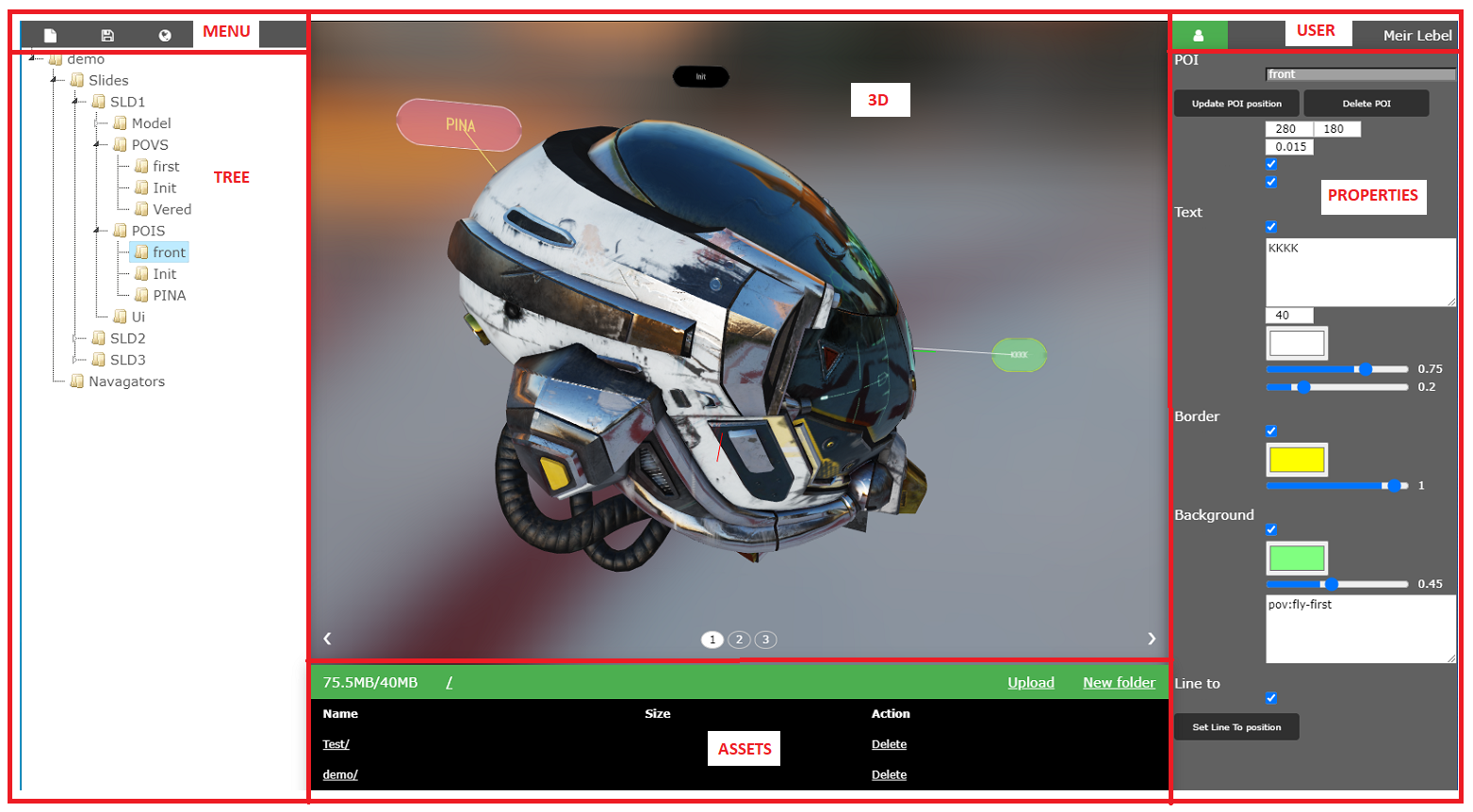
Main toolbar

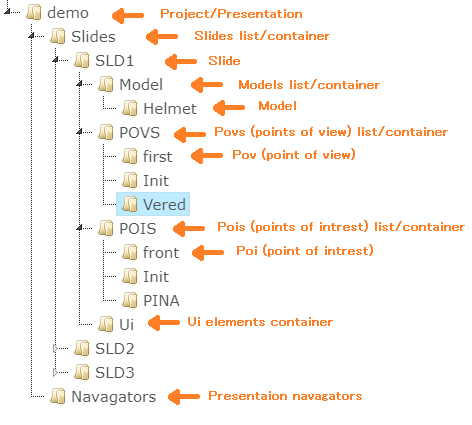
Tree view
3D view
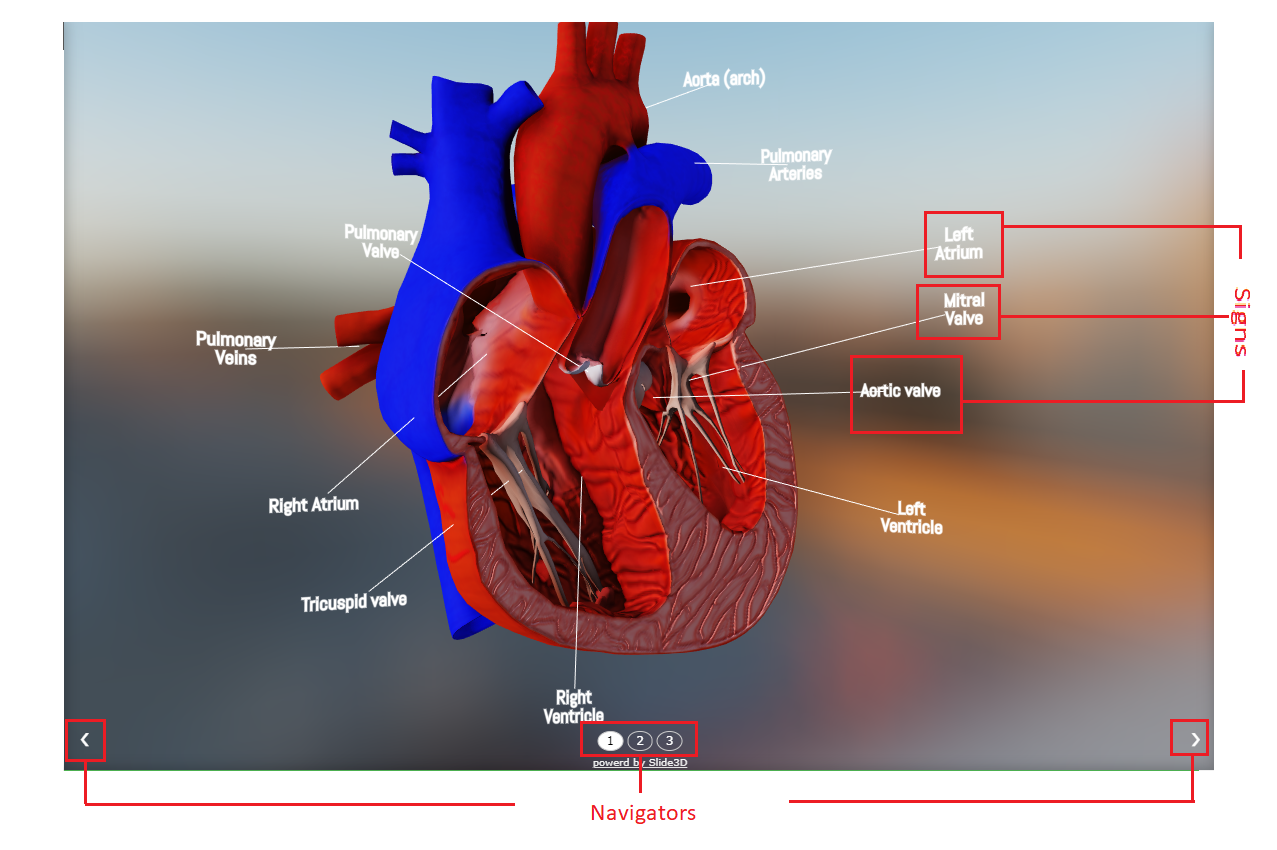
On the 3D view, you see the actual presentation. Beside a helper for editing the presentation, it acts like it is the published presentation.
Navigators are for passing from slide to slide in the presentation.
Mouse beavior: left button to rotate the model. wheel for zooming in & out. middle button for panning.
Touch beavior: one touch to rotate. two touch spredding, for zoom in & out. two touch & move for panning.
Properties view
Assets view
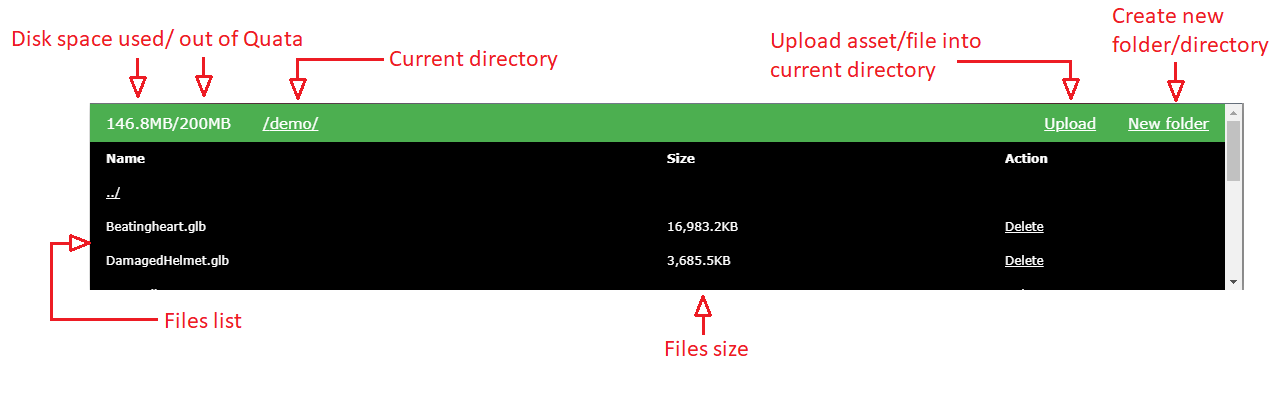
Use the assets view for managing your assets (files) on Slide3D server. Each user get a quata (disk space), inintialy 10MB for free. Upload your 3D models (.glb), images, videos & html files for the popups
Make sure that you optimize your data in order to keep low quata. Create miningfule structrue of folders/directories.
Account
There are two ways to create or login to an account:
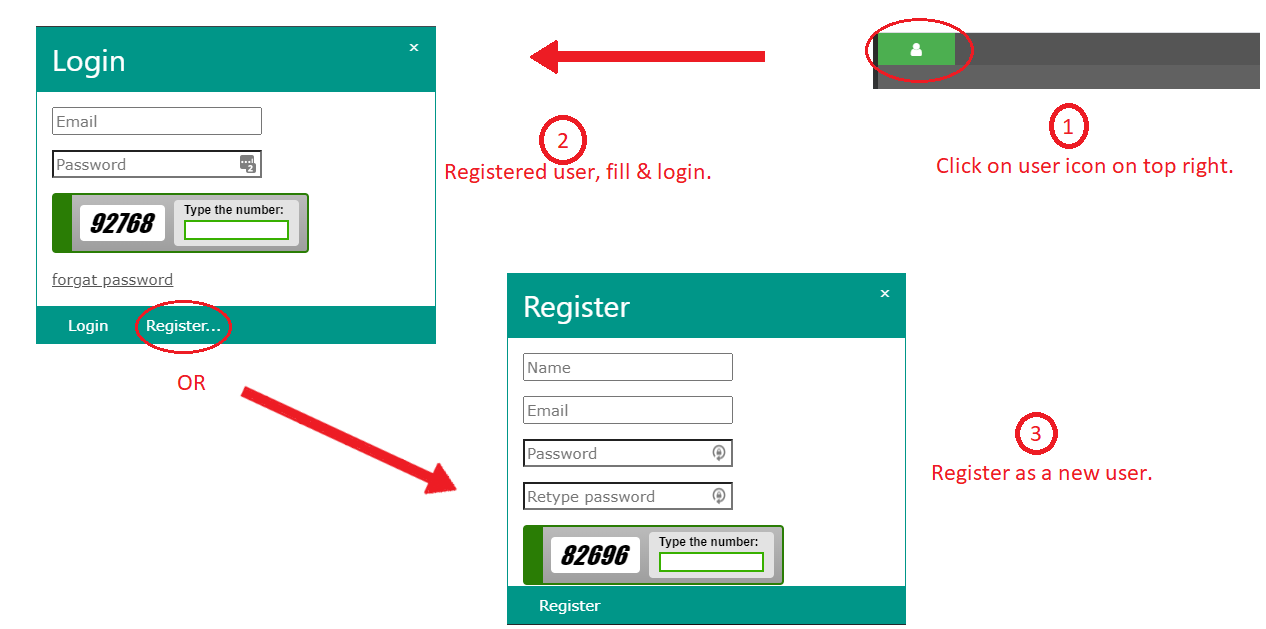
From the editor - Click on user icon (upper right) then login if you allready have an account or register as a new user.
Or go to account
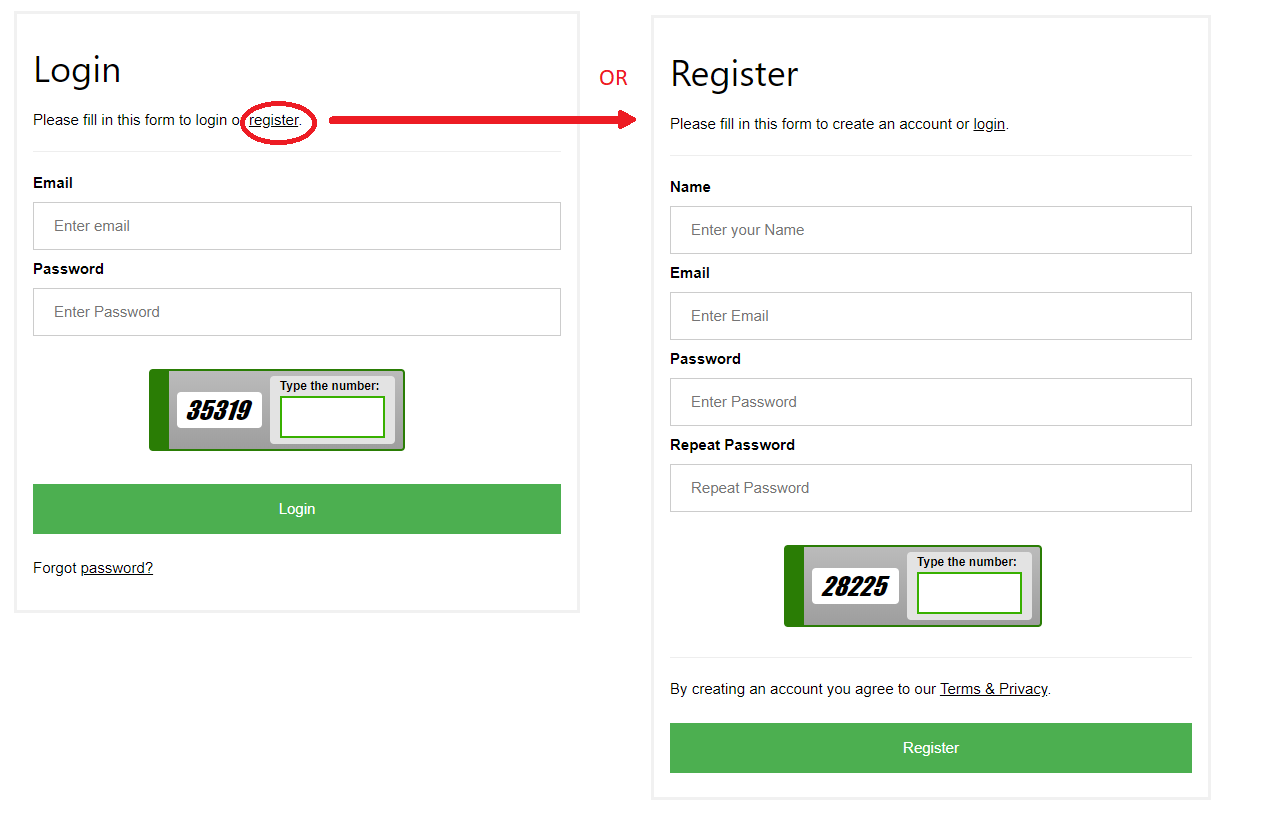
After registration, account will be active only after email approval, sent automaticly uopon registration.
Once loged in, user can change credentials, like Name & Password.
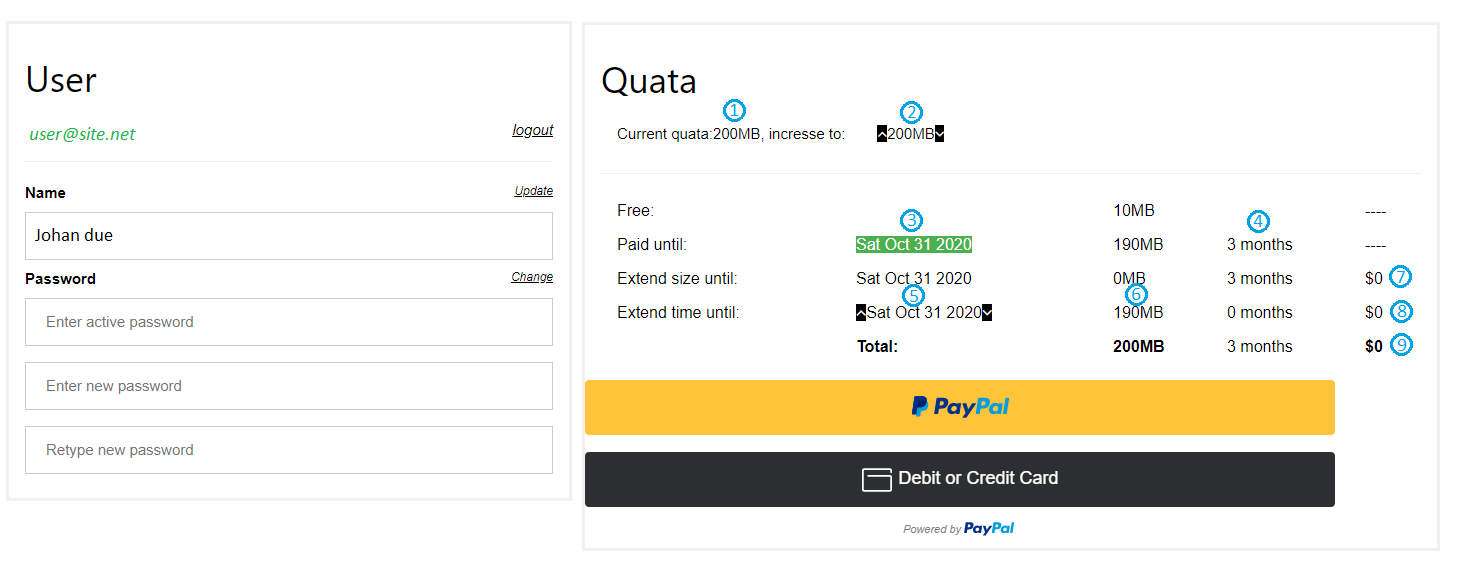
Managing your Quata (Disk space):
Your disk space, is were your assets like 3d models, movies, images & htmls are uploaded and also were your presentations/projects exist. Up on registration, you get free 10MB of quata, this alow you to test & create small presentations with the Slide3D technology & editor.
- This is your current quata.
- Click up & down to increse/decrese the requested quata by 10MB jumps.
- This the experation date since your last payment, along with paid quata.
- In this column were you see the riminder months until your next payment.
- Here you can extend the time in jumps of one month since your last payment.
- The total MB with extended date.
- The cost of extended MB until your next payment, minus the allready paid
- The cost of extended MB with extended monthes.
- Total cost.
Project
AKA - Presentation, is the collection of files/assets and data that later published as a Presentation or Slide show or Lecture.
Create
Click the 'Presentation/Project' icon on the top left toolbar to open the projects dialog.
Then select the 'New' button to open a 'New Presentation' dialog to give a name & 'Create'.
Load
Click the 'Presentation/Project' icon on the top left toolbar to open the projects dialog.
Then select the project you want to open from the projects list & click 'Open'.
Save
Click the second icon on the top left toolbar, this will save the project with the changes you made.
Publish
Click the third icon on the top left toolbar, this will save the project & also publish the presentation, in return you will get a link to your presentation.
You can now publish this link to your audience. you can also embedd the presentation in your website using the 'iframe' tag.
Presentation
Is a collections of one or more slides, you move between slides with slides navigators.
Slide
Contain, one or more 3d models (each called a part). You can add to the slide also signs (text, images & movies), POVs (points of views) & htmls popu to enrich the content of the slide about the model.
Model
Pov - Point of view
Is a point in space, usally apoint on the model or near the model, with orientation & distance.
When the 3D camera (viewer eye) is set to the pov, then this point on model become the focus of intrest with a distance from it.
Sign
Could a be a text, an image or a movie floating in space, which give more specific data on the model or part of it.
Sign can be set to keep the scale, so no matter how much you zoom in or out, the sign stays in the same size.
You can also set the sign to allways look forward to keep it visible.
A line from the sign can be drwan from it to a POV, so it looks attached to this POV.
Usally, you will want to set some action when the sign is clicked. for example fly to a POV.